On the 1st of the month at the start of each quarter, through its MVP program (@MVPAward), Microsoft has been awarding (and/or re-awarding) external individuals with the MVP designation (for a period of 1 year) for their contributions (over approximately the prior 12 months) in a single area of expertise. Some people have maintained their designation (possibly changing technical expertise along the way) for well over 10 years continuously. That program is evolving in a very positive way to embrace the broader contributions of some MVPs.
10 New Things for Developers on Windows 10
Or “What you can use to target 1+ billion devices with one application”
Further resources including videos are indicated at the bottom of this post.
Windows 10 is scheduled for its first official public release today, Wed Jul 29 2015, on desktops, laptops, 2-in-1s and large tablets. More so than with any previous Windows release, millions of users either already have the bits (‘Windows Insiders’ – anyone who decided to sign up for the free program and install bits on their system) or are registered to upgrade (as regular consumer or small business users with Windows 7/8.1 users who signed up via the icon in the their taskbar).
In any case, anyone with a legitimate copy of Windows 7 or 8.1 (with the latest updates) can update to Windows 10 for FREE within the next 1 year. Enterprise users have to pay to upgrade but may be covered by an existing Software Assurance arrangement. MSDN should also carry various editions applicable to the MSDN subscriber level, subject to MSDN licensing terms.
Starting a little later in the year, we’ll see a roll out of Windows 10 for other device families, including Windows 10 on 55” and 80” Microsoft Surface Hub devices, Windows 10 Mobile on phones and small tablets, Windows Holographic on HoloLens and further Windows 10 IoT Core releases for IoT devices like Raspberry PI 2.

In any case, Microsoft is targeting 1 billion + users for Windows 10 on many device families.
Here are 10 things you should know about to help you build an application that can run on those devices.
Leaning Towards a Surface Pro 3
I’m debating Surface Pro 3 vs. Lenovo Yoga Pro 2. Perhaps this serves as input for others considering the Surface Pro 3.Also, one could probably apply this comparison for other Ultrabooks instead of the yoga. Also, one could probably apply this comparison for other Ultrabooks.
![image[17]](https://colinizer.files.wordpress.com/2014/08/image17.png?w=240&h=188 "image[17]")

The Killer Threshold Devices/Experiences of Build 2015
aka what MS must do to stay and go beyond relevant in the gadgets, devices and platform space for consumers, enterprise and developers.
Note – there is no insider or NDA information in this post.
Build 2014 was devoid of devices for which one could build. Next year should be entirely different… All of this is possible. However, cue dreamy wibble effect…
The tablet that is a desktop…
Announcing Surface One running Windows 9 Touch. Surface One is a device with an 8.9" 1620×1080 display with active digitizer and pen for experiences like the Surface Pro 3. It’s the ultimate mobile device featuring Wifi, Wifi Direct, BT 4 LE, LTE & Wireless charging, but of course also a USB 3.0 port. Battery life is 12 hours. It runs WinRT apps including WinRT Office (aka Gemini). It also runs Office RT. But you don’t have to compromise. Place the device on a previously unregistered NFC charging pad and it provides the opportunity to connect to and remember a bluetooth keyboard, bluetooth mouse and HD wireless display. On that display you get the full Windows desktop running full Win32 apps powered by Azure with RemoteApp. It’s available starting at $249.
Announcing the Surface Wireless Charger, a wireless charger and stand with an NFC tag to wake up your desktop experience. It’s available for $49.
Announcing the Surface Wireless Battery, a wireless charger and battery (that is wirelessly/USB-charged) and stand with an NFC tag to wake up your desktop experience. It’s available for $99.
Announcing the Surface 3 Dock, with physical docking which adds 2 USB 3.0 ports, gigabit ethernet, power and displayport for connecting to up to 2 external HD monitors with DisplayPort. Available soon for $149.
The phone that is a desktop… The PocketPC (to risk ressurection of another Microsoft brand)…
I can’t stress how huge I think this would be. It could spark the beginning of an era of ubiquitous public docking stations including cameras for walk-up video conference calling.
Announcing Lumia One (also) running Windows 9 Touch. Lumia One is a phone device with a 5" HD display. Just like the Surface One, you can place the Lumia 9000 on a wireless charging pad and get the full desktop experience courtesty of Microsoft Azure!!! It’s available starting at $199 on 2-year plans or $399 unlocked.
Announcing the Lumia One Wireless Charger, a wireless charger with an NFC tag to wake up your desktop experience. It’s available for $49.
Announcing the Lumia One Shell, a device with a 13.3" 2160×1440 touch display, keyboard, trackpad, Wifi, Wifi Direct and bluetooth. It’s a mere 0.4"/100mm thick with 20 hours of battery life. It’s the laptop experience for your Lumia One. Available later in 2015 for $249.
Announcing Windows 9 Standard and Enterprise – for desktop Windows on tablets, laptops and desktops. Enterprise is a whole other story, but there needs to be consistent friction-free enterprise WinRT apps stores and deployment.
Gadgets… Yes I’m going there because Microsoft must seed the Internet of Things and capture the next generation of developers…
Announcing Xbox Gadgets – a series of sensors, devices, services and kits designed to bring your home and imagination alive:
Xbox Gadgets Relay – devices that connect low power bluetooth devices to your network
Xbox Gadgets Sensor Pack – ambient multi-sensor array in a single package
Xbox Gadgets Contact – physical contact sensors
Xbox Gadgets Camera
Xbox Gadgets I/O – analog/digital signal I/O
Xbox Gadgets Power – power control
Xbox Life Service – logs, automates, reports on and provides remote access/control of, your network in real-time from Windows devices and browsers on other devices.
Xbox Gadgets Lab – two boards (NETMF and Intel) and modular components that you can program via a WinRT app running on your Windows device or Xbox, or more fully using Visual Studio
Xbox Gadgets Factory – turn your lab experiments into prototypes with optimised boards with 3D-printed cases
And yes, this is not a money-maker. It’s a relevancy-defender. Microsoft can’t afford to let its consumer and youth developer mindshare slip further.
Announcing XWatch [example brand] – the watch with the unique 3" landscape and thin form-factor that runs specially targeted C#/XAML WinRT apps. Announcement only. Ties into the Xbox Life Service.
Announcing Microsoft (or some partner OEM potentially with existing products) Health Pack – glucose, pulse, blood pressure and other bio-measurement devices. Ties into the Xbox Life Service.
Announcing Xbox Vision [example brand aka fortaleza] – Smartglass app and augmented gaming experiences on glasses with Xbox. $299, holiday 2015.
In its second 2016 iteration – it becomes a second display for your Lumia One and for public augmented reality.
Announcing the new unified Windows Store.
And finally, announcing building and open publishing of XAML/C# + WinJS apps for Xbox One to the unified store. Demos only. Developer-enable your Xbox One and create apps by summer 2015. Store opens holiday 2015.
Now that’s a platform story on a huge array of devices that are all cloud-connected.
The Best $99 a Year You Can Spend On Your Kids’ Education
Yesterday I did a talk at a school, talking about careers in information technology. We had a great time with a demo of texting colours to lamps in the lamps in the class room – yes, Text-To-Lamp - but it pains me to know that there’s little exposure locally to industry standard software for these children.
I live in an area of the country where legislation prevents school boards from promoting services that store personal information outside of the country, or some such nonsense. Now I get the privacy concerns – I’m a private person – but this really needs to change. It’s nonsense because teachers here slyly promote US-hosted services like Twitter and Prezi because they know that children need to be technically savvy. So sadly, overall in some places of the modern world, children here are not being exposed to great software and services and the skills to use them that can be taken into the job market place. So here’s the deal. It’s up to parents to do this in the home where they can……
Prediction: Windows Phone 9 is Windows 9 Phone – Pocket PC +Glasses FTW
How many times have you heard pundits, experts, retail associates and reporters incorrectly refer to Windows Phone 8 as Windows 8 Phone? In the future they may be right…
A Wireless Display Feature in Windows Blue Could Mean One Device For Everything
There has been a lot of work put into syncing profiles across devices in Windows 8+. Perhaps you only need one device…

Prediction: New Devices will Surface from Microsoft for Windows 8 Blue summer 2013
This is entirely based on thought, guesswork, what’s really needed, what’s possible, and wishful thinking at worst. It is not based on any communication or disclosure from Microsoft (directly or indirectly).
Microsoft – note the short branding style.
Update: The Build 2013 conference has been announced for June 26th, 27th & 28th. This is around the time that the Surface devices were announced last year. A big negative comment around Build 2011 was that there wasn’t a lot of developer information prior to Build 2011. Leaked builds aside, an early conference this year could help appease developers ahead of the Windows Blue release. However, a criticism for the Surface announcement in 2012 was that there were no pre-order date given. A much earlier conference this year may not provide for any new device pre-order announcements if we are looking at an autumn timeframe for new device availability, unless Microsoft has been very busy at work and such devices are coming sooner that we think – an end-of-August date (6 months after the Surface Pro) would tick all the right boxes for back-to-school and stay out of the way of the next Xbox release.
Update: Speculation is moving towards reality – Paul Thurrott of Winsupersite claims that Microsoft will ship an 8" device in 2013. So read 8" instead of 7" below, providing almost 200DPI if the resolution is 1366×768.
Update June 3 2013: Microsoft is having a crazy sell-off of Surface RT and Surface Pro at the Microsoft TechEd North America conference. This signals new devices around the corner!
Queue wavy dream sequence to summer announcements…
Surface Mini – $299
Windows 8 is now available on the the 7” Surface Mini (for $300), which includes Office 2014 RT store apps for Word, Excel, PowerPoint & OneNote (with no business license), limited or NO desktop, and is compatible with the new Surface Dock (Pro) (see below). It features a low-power I3 equivalent, 2GB RAM and 32GB SSD. Battery time is 8+ hours.
Update June 3 2013: Dell is selling Windows RT devices for $299. An Intel Baytrail-based Surface Mini later this year, seems very likely now.
Surface Mini Pro – $399
Also in the mini series is the 7” Surface Mini Pro (for $400), which includes Windows Pro, Office 2014 RT Pro (which add a store version of Outlook with an Office business license), a desktop with app compat, domain join, management group policy with system center/InTune, and docks fantastically using the Surface Dock (Pro) with no DPI issues. It features a low-power I5 equivalent, not ARM, 4GB RAM and 64GB SSD. Battery time is 6+ hours. There are WAN model options for $50 more.
Mini users can upgrade their OS to Windows Pro for $150 (but of course don’t get the physical RAM or SSD upgrade).
Both devices come with 2xUSB 3.0, 1xDP (plus DP-HDMI adapter), pen digitizer, WiFi, Bluetooth 4, GPS, Compass, Accelerometer, Gyro, NFC. They are compatible with existing Surface power supplies and DisplayPort accessories, but not keyboards. Buyers are encouraged to buy other Microsoft Bluetooth keyboards.
Surface Dock – $49
There’s also the Surface Stand Charger for $50 which is a wireless charger for the Mini Series, with magnetic power-in connector and a bluetooth receiver with 1 DisplayPort out connector.
Surface Dock Pro – $99
The Surface Dock Pro ($100) features a 3-port USB 3.0 hub, the previously mythical DisplayPort MST hub with 3 ports and 1 DP-HDMI adapter, 1000-baseT Ethernet, and magnetic power-in connector. The Mini series connects to the dock in portrait or landscape using one of the two strategically placed USB 3.0 ports also providing wireless charging.
Surface Xbox Mini – $299
The Surface Xbox Mini is a 7” game/companion device at $300 – essentially a Surface Mini with no Office (though available as apps to buy in the store for $100) but increased GPU power. The battery lasts for 4+ hours of game play.
Windows RT –> Windows Phone
The Surface with Windows RT (aka Surface RT) is discontinued. Windows on ARM is now solely the foundation for new WP8 Blue devices which are becoming more like Windows RT, and are compatible with the Surface Dock (Pro) for desktop docking, video display and charging!!! Your desktop is now in your pocket allowing you to dock and use Windows RT on external monitors.
Windows now successfully covers tablets that become your desktop with Surface Mini Pro and phones that become your desktop with Windows Phone.
Surface Screen Adapter – $49
Turn any HDMI or VGA display into a single wireless screen for your Windows 8 tablet or phone (!) device with Bluetooth 3.0+HS or higher.
Update June 3 2013: Microsoft has announced Miracast support in Windows 8.1. This means future Windows 8.1 devices will make use of these kind of screen adapters, which are in fact already available!
Surface Pro 2 – $799
Windows 8 is also available on the Surface Pro 2 (which now starts $799 with 8GB RAM), featuring the lower power Intel chipset with battery life lasting 6+ hours, and is compatible with the Surface Dock Pro, but not for wireless charging. It adds in all missing sensors.
Update June 3 2013: Intel Haswell chips are out of the gate. I expect we’ll see the announcement of a Surface device using Haswell at Build on June 26th – perhaps even an available device.
Surface Lap Cover – $149
The Lap Cover is also available for both the Surface Pro & the Surface Pro 2 which is similar to the Type Cover, but providing a locking angle for the screen without the stand and includes a battery which (when combined with the system battery) provides 8+ hours of use for the Pro, and 10+ hours with the Pro 2.
For $600 CxO and IWs are snapping up Surface Mini Pros with WAN, a Dock and a keyboard. Some are saving $200 off the device with a new mobile provider 3-year plan.
The $300 Surface Mini and Surface Xbox Mini become the fastest selling tablets ever during Dec 2013, with families buying multiple units from back to school to xmas.
Then, there’s the ‘Xbox 720’…
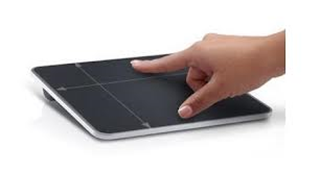
Dell TP713 Wireless Touchpad First Impressions
Let’s take a quick look at the TP713 I recently bought and just plugged in. Is it for you?
 Colinizer